
Setting up Home Assistant is the moment your smart home stops being a collection of separate apps and becomes a single, locally controlled system – but only if you understand what you’re actually building before you plug anything in.
Most guides hand you a shopping list and a sequence of clicks. This one explains what each layer does, where each step can break, and why the decisions you make in the first thirty minutes determine whether your setup is still working reliably two years from now. Three entities drive everything here: the hardware you choose, the installation path you pick, and the automation logic you write. Get those three right and the rest is configuration.
What You Need Before You Start
Setting up Home Assistant starts at the physical layer – and the single most common reason a new install stalls isn’t a software problem at all, it’s a missing cable, an underpowered supply, or a microSD card that was never going to survive more than a few months of continuous writes.
Before downloading anything, get the hardware sorted. The decisions you make here – particularly around storage – will determine whether you’re rebuilding this from scratch in six months.
Essential Hardware and Accessories for Home Assistant
Home Assistant hardware runs as a dedicated device, not a background process on your laptop, and the minimum viable options break down clearly by what you’re willing to spend and how much you want to tinker.
The official paths are: Home Assistant Green (purpose-built, arrives pre-flashed), Raspberry Pi 4 (minimum 2GB RAM, though 4GB is the practical floor) or Pi 5, or any x86-64 mini-PC or old laptop with at least 8GB RAM. Docker users on an existing Linux server are a fourth category – covered in the next section.
Each path has non-negotiable accessories:
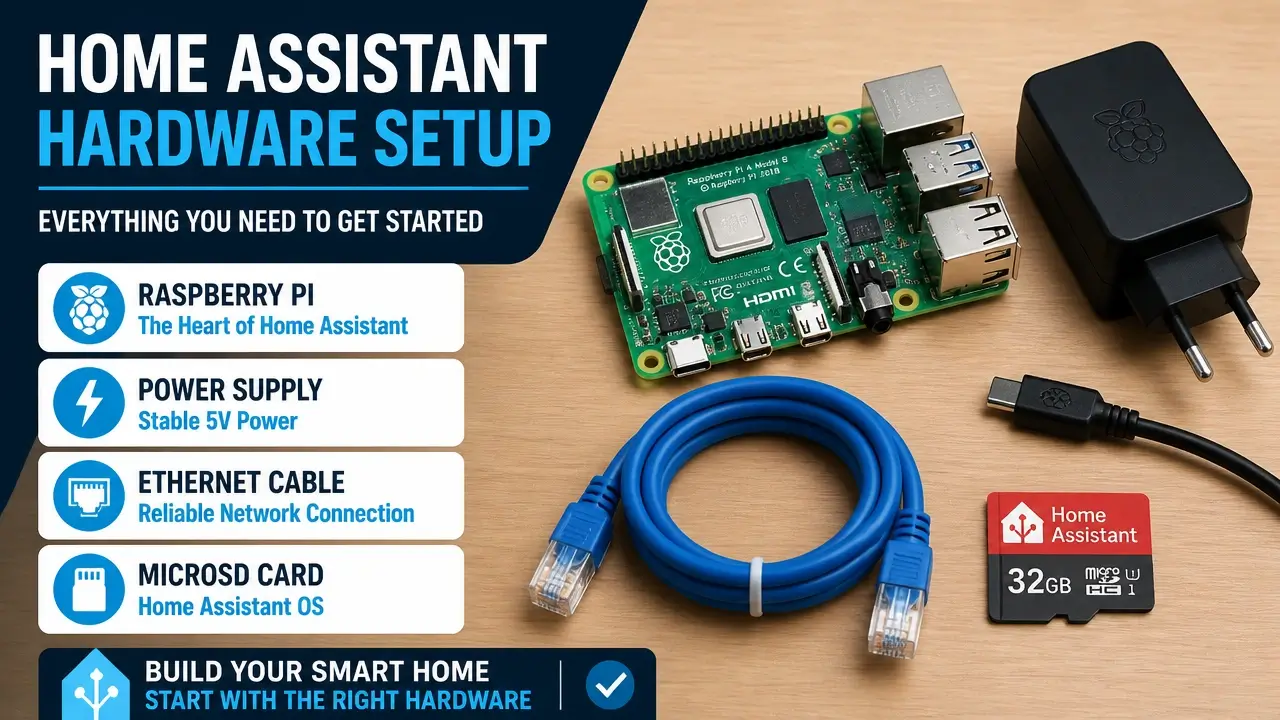
- Pi path: A microSD card rated A2, 32GB minimum – but read the warning below before buying one. A USB SSD is the smarter investment. A power supply rated at 3A minimum (the official Pi foundation supply, not a phone charger). An Ethernet cable for first boot.
- Mini-PC path: Ethernet cable. That’s genuinely it for hardware – the machine already has internal storage.
- Green path: The power adapter ships in the box. You supply the Ethernet cable.
Here’s where the official guide and the community’s lived experience diverge. The setup documentation still positions the Raspberry Pi as the natural starting point, and for a single-digit device count it’s fine. But the community that runs fifty-plus devices, cameras, and energy monitoring has learned something worth knowing before you buy:
“HomeAssistant (HA) is based on the HomeAssistant Operating System (HAOS) installed on an 8 GB RAM variant of a RPi4 device with a 256 GB solid-state drive (SSD) storage” – Smart Home Researchers, Academic research on smart home deployments
That SSD detail isn’t incidental. Experienced builders have documented repeatedly that microSD cards are the primary failure point in Pi-based setups – not the Pi itself, not the software. Continuous database writes from energy sensors, logs, and state changes wear through even high-endurance cards. A used mini-PC at around $150 costs more than a $60 Pi kit, but the reliability gap is real. If you’re committed to the Pi path, budget for a USB SSD boot from day one rather than treating it as a future upgrade.
The photo below shows a typical hardware spread for a first install – note the SSD rather than a bare SD card on the Pi:
Software Tools and Network Preparation for Installation
Flashing tools are free and the choice depends on your hardware path. Raspberry Pi Imager handles Pi targets directly and can write the Home Assistant OS image without any intermediate steps. balenaEtcher is the alternative for other hardware targets – same workflow, different interface. Docker users need only Docker Engine already installed on their Linux host; no flashing involved.
Network preparation matters more than most guides admit. Connect your Home Assistant device to your router via Ethernet before the first power-on. Home Assistant’s device discovery relies on being on the same network segment as your smart devices, and a Wi-Fi-only first boot introduces a variable that’s easy to eliminate. You can add Wi-Fi later once the system is running – start wired.
One logistical note: the first boot triggers a download of roughly 700MB as the system pulls its container image and updates. If you’re on a metered connection, that’s worth knowing before you start. Don’t reboot the device or close the browser tab during this process – it looks stuck, but it isn’t.
Choose Your Installation Path
Home Assistant installation paths are a genuine fork in the road, not just a cosmetic choice – and the one you pick determines which features are available to you natively, how much maintenance you’ll do, and whether you can follow 90% of the community’s tutorials without translation.
The three paths that cover first-time installs are:
- Home Assistant Green – for users who want hardware to disappear entirely. It arrives with HAOS pre-flashed. You’re buying your way out of the imaging step.
- Home Assistant OS (HAOS) on a Raspberry Pi or mini-PC – the standard path with full feature parity. This is what most community documentation assumes you’re running.
- Home Assistant Container (Docker) – for users who already operate a Linux server with Docker and want to add HA without a dedicated machine.
The table below maps each path to hardware requirements, add-on support, and the honest difficulty level:
| Path | Hardware Required | Add-on Store | Thread/Z-Wave Native | Difficulty |
|---|---|---|---|---|
| Home Assistant Green | Green device (~$99) | ✅ Full | ✅ Yes | Easiest – no flashing |
| HAOS on Pi / mini-PC | Pi 4/5 or x86-64 machine | ✅ Full | ✅ Yes | Moderate – imaging required |
| Docker Container | Existing Linux server | ❌ Not available | ❌ Manual only | Advanced – manual config |
That add-on column matters more than it looks. HAOS – which includes Green – is the only path that supports the official Add-on Store. That’s where you get one-click installs for Zigbee2MQTT, the Z-Wave JS UI, Mosquitto MQTT broker, and dozens of other tools that would otherwise require manual Docker orchestration. If you want to pair a Zigbee sensor or a Z-Wave lock in the next month, the Docker path will cost you significant extra configuration time.
One more thing the Green box needs you to know before you buy it: the phrase “plug-and-play” on the packaging is accurate about exactly one thing – you don’t flash a card. The hardware setup genuinely is trivial. But the software configuration that follows is identical across all three paths. You still run the onboarding wizard, configure security, pair integrations, and write automations. “Plug-and-play” means the Pi Imager step is gone. It doesn’t mean the learning curve is gone. A beginner who expects a finished smart home dashboard on first boot will bounce before the wizard completes – knowing this in advance is the difference between frustration and a successful install.
Install Home Assistant
Home Assistant installation diverges here into three concrete sequences – pick the one that matches your path from the previous section and follow it through to the browser check at the end.
HAOS on Raspberry Pi or mini-PC:
- Go to the official Home Assistant installation page and download the HAOS image for your specific device (Pi 4, Pi 5, or generic x86-64).
- Open Raspberry Pi Imager (or balenaEtcher). Select “Use custom image,” choose the downloaded file, and select your microSD card or USB SSD as the target. Flash.
- Insert the card (or connect the SSD) into the Pi, connect Ethernet, and apply power.
- Wait 5–10 minutes. The device will boot, pull its initial container image, and obtain an IP address from your router via DHCP.
Home Assistant Green:
- Plug in the Ethernet cable.
- Plug in the power adapter.
- Wait 5–10 minutes.
That’s the entire hardware setup. The software journey from here is identical to HAOS on Pi.
Docker:
Run the following command on your Linux host:
“`bash docker run -d \ –name homeassistant \ –privileged \ –restart=unless-stopped \ -e TZ=YOUR_TIMEZONE \ -v /PATH_TO_YOUR_CONFIG:/config \ -v /run/dbus:/run/dbus:ro \ –network=host \ ghcr.io/home-assistant/home-assistant:stable “`
Replace `YOUR_TIMEZONE` with your local timezone string (e.g., `America/New_York`) and `/PATH_TO_YOUR_CONFIG` with a directory on your host. The `–network=host` flag is important – it’s what allows Home Assistant to discover devices on your local network. Note that the Supervisor health check won’t apply in Container mode; ignore any warnings about it.
For all three paths – the browser check:
Open a browser and navigate to `http://homeassistant.local:8123`. If that address doesn’t resolve (common on Windows machines where mDNS isn’t reliable), open your router’s admin panel, find the DHCP client list, locate the device named “homeassistant,” and use that IP address directly: `http://[IP ADDRESS]:8123`.
If the page shows a loading animation rather than a setup wizard, that’s normal – the system is still pulling the ~700MB initial download. Do not reboot. Give it up to 20 minutes on a slower connection. If you see nothing at all after 20 minutes, the most likely cause is that the device is on Wi-Fi rather than Ethernet – switch to wired and reboot.
The video below walks through the full HAOS install sequence visually if you want to see the exact screen states before committing:
Complete the Onboarding Wizard
Onboarding Home Assistant is a five-screen wizard that every installation path shares – and one of those screens contains the only decision in this entire process that you genuinely cannot undo without starting over.
Screen 1 – Create your administrator account. Choose a lowercase username (no spaces) and a strong password. Store that password somewhere outside Home Assistant right now – a password manager, a piece of paper in a drawer, anything. There is no “forgot password” flow for the local admin account. If you lose it, you’re re-flashing.
Screen 2 – Name your home and set your location. The default 100-meter radius for your home zone is fine to start. This location data stays local – it’s used for sunrise/sunset automations and presence detection, not sent anywhere.
Screen 3 – Telemetry. Optional. Home Assistant uses this anonymized data to improve the project. Enable or skip based on your preference; it has no effect on functionality.
After clicking “Create,” the system pulls down a significant download. Leave the browser tab open and don’t close it. This phase can take 10–20 minutes depending on your connection speed. The progress bar will move slowly and may appear to stall – this is normal.
When the dashboard appears, you’re looking at your own local instance. No cloud account required. No subscription. The sidebar on the left is your navigation – “Overview” is the default dashboard, and the gear icon at the bottom is “Settings,” which is where every device pairing, automation, and configuration option lives. The dashboard will be empty or nearly empty at this point. That’s correct. You haven’t added any devices yet.
Add Your First Integration and Set Up Your Dashboard
Smart home integration in Home Assistant works in two directions: the system actively listens for devices announcing themselves on your network, and you can also search for and manually add any of the roughly 3,000 integrations in the catalog. The first time you land on the Integrations page, both of these things may be happening simultaneously – and understanding which is which prevents a lot of confusion.
Adding Devices via the Integrations Page
The Integrations page (Settings > Devices & Services) is where autodiscovery surfaces anything Home Assistant found on your network automatically. If there’s a yellow card with a device name and a “Configure” button, that’s autodiscovery working – click “Configure” and follow the prompts.
For a manual example that illustrates the full pattern, adding a TP-Link Kasa smart plug works like this: click “Add Integration” in the bottom right, type “TP-Link” in the search box, select it, and Home Assistant will scan your network for Kasa devices. If the plug is on the same subnet and powered on, it will appear. In some network configurations you may need to enter the plug’s IP address manually – check your router’s DHCP table for it.
Once the device appears under “Devices,” click into it and assign it to a room using the Area field. This step takes ten seconds and pays off immediately: areas let you group devices by room, which cleans up the dashboard automatically and makes automation conditions easier to write later.
The architecture beneath this is worth naming: Home Assistant is communicating with the Kasa plug over your local network using TP-Link’s proprietary protocol. No cloud involved. The command goes from your browser → Home Assistant → plug, entirely within your home network. That’s the behavior you want, and it’s why checking the subnet matters – a device isolated on a guest network can’t be reached this way.
Semantic IoT Researchers, open-source UI/UX developers and semantic dashboard engineers, describe exactly how this local control loop works:
“The dashboard utilizes the Bootstrap library [or equivalent web components] for responsive UI elements and includes real-time visualization of device data. JavaScript-based controls issue HTTP requests directly to the gateway for immediate action…”
That “directly to the gateway” detail is the key: the control path is local, synchronous, and fast. When it feels slow, the problem is almost always network – not the software.
Dashboard Customization and Troubleshooting Device Discovery
Dashboard customization in Home Assistant starts at the Overview page – click the pencil icon in the top right to enter edit mode, then “Add Card.” For your first card, choose “Entities” and add two entities from your Kasa plug: the toggle switch entity (something like `switch.kasa_plug`) and the power sensor entity (`sensor.plug_power` or similar). Save the card.
You now have two-way control: the toggle turns the plug on and off, and the power sensor shows real-time wattage. That power sensor entity is not cosmetic – it’s the building block for the automation in the next section. Note the exact entity ID (`sensor.plug_power` or whatever yours shows) because you’ll need it shortly.
If autodiscovery didn’t find your device, work through this sequence before assuming a software problem:
- Reboot the device and your router, then check the Integrations page again.
- Confirm the device is on your main network subnet – not a guest network or an IoT VLAN with client isolation enabled.
- If it’s a Zigbee device (not a Wi-Fi plug), the issue is almost certainly that you don’t have a Zigbee coordinator connected yet. That’s a separate layer entirely – covered in the troubleshooting section.
The subnet check matters because most home routers isolate guest networks from the main LAN by design. A device on `192.168.2.x` cannot be discovered by Home Assistant running on `192.168.1.x` unless you’ve explicitly configured routing between them. If you bought a smart device and it’s on your guest network for security reasons, it will need to move to the main network (or you need a properly configured IoT VLAN, which is an intermediate-level topic) before Home Assistant can reach it.
Create Your First Automation
Automation in Home Assistant is where the architecture you’ve been building starts doing things on its own – and the example that follows is one the community spent real effort getting right, because the obvious approach fails in a non-obvious way.
The scenario: you have a kettle on a power-monitoring smart plug and a dryer on a smart switch. You want the dryer to pause when the kettle starts drawing power – because both on the same circuit is a tripping risk – and resume automatically once the kettle finishes. Simple in concept. The failure mode is in how you detect the kettle.
Here’s what the community learned the hard way: voltage sensing doesn’t work for this. Any large motor – including the dryer itself – causes voltage sag on the circuit. A voltage-only sensor will trigger your automation every time the dryer drum spins up. The only reliable trigger is actual power consumption from a true power-monitoring plug (like the TP-Link KP115). Power draw is deterministic. Voltage sag is noise.
Home Automation Microgrid and Safety Engineers, authors of microgrid alarm designs and energy-saving automation algorithms, describe the core problem directly:
“The power consumption of the appliances in a time interval exceed a maximum limit. In this case, the user asks their smart devices to use a quantity of energy that is above the maximum load capacity… Such a case is [managed] by computing the sum… and responding accordingly”
That “computing the sum” is exactly what the template below does – it watches real power draw, not a proxy signal.
Step 1: Create a binary sensor template
This converts the kettle’s raw wattage reading into a clean on/off state that the automation can act on reliably.
Go to Settings > Devices & Services > Helpers, click “Add Helper,” choose “Template,” then “Binary Sensor.” Paste this template into the state field – or add it directly to your `configuration.yaml` under the `template:` block:
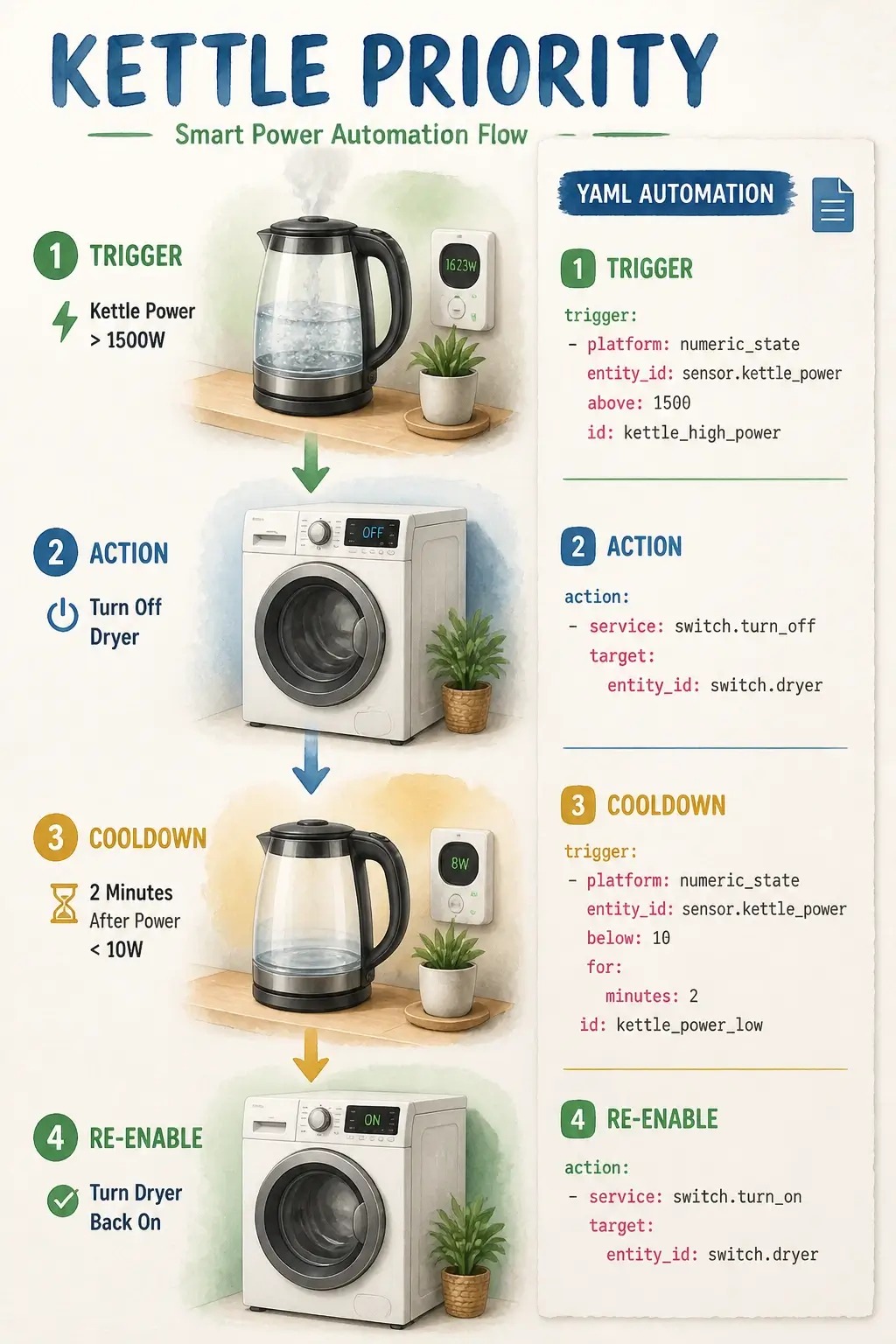
“`yaml template: – binary_sensor: – name: “Kettle Running” unique_id: kettle_running state: > {{ states(‘sensor.kettle_power’)|float > 1500 }} “`
Replace `sensor.kettle_power` with your actual entity ID. The 1500W threshold is specific to a typical kettle – adjust it if yours is rated differently.
Step 2: The interlock automation
Open Settings > Automations & Scenes, click “Add Automation,” then switch to YAML mode using the three-dot menu in the top right. Paste this:
“`yaml alias: “Kettle On – Pause Dryer” description: “Turns off dryer when kettle starts drawing power” trigger: – platform: state entity_id: binary_sensor.kettle_running to: “on” action: – service: switch.turn_off target: entity_id: switch.dryer “`
Then create a second automation for the recovery:
“`yaml alias: “Kettle Off – Resume Dryer” description: “Turns dryer back on after kettle finishes, with cooldown” trigger: – platform: numeric_state entity_id: sensor.kettle_power below: 10 for: minutes: 2 action: – service: switch.turn_on target: entity_id: switch.dryer “`
The `for: minutes: 2` is the cooldown – it prevents the automation from firing during the brief moment between the kettle’s thermostat clicking off and the element cooling. Without it, the dryer re-energizes while the kettle is still technically in a cycle, and you get rapid on/off cycling. Two minutes is the community-vetted value that covers every kettle type without being annoyingly slow.
Save both automations. Test by turning on the kettle while watching the dryer switch state in the Overview dashboard. You should see the dryer switch go off within a few seconds of the kettle reaching temperature, and back on roughly two minutes after the kettle completes its cycle.
The logic flow for this interlock is worth visualizing before you wire it up:
Secure and Extend Your Home Assistant
Home Assistant security isn’t a single setting – it’s a stack of decisions that, taken together, determine whether your local hub stays local or becomes a door someone else can walk through. The good news is that the minimum viable security posture takes about fifteen minutes and doesn’t require running a reverse proxy.
Core Security Configurations for Home Assistant
Security settings in Home Assistant start at your Profile page, and the most consequential thirty-second action in this entire guide lives there: enabling Multi-Factor Authentication (MFA). Click your username in the bottom left of the sidebar, scroll to “Multi-factor Authentication Modules,” enable TOTP, and pair it with your authenticator app. From this point forward, your admin account requires both a password and a time-based code to log in.
Next, add the following to your `configuration.yaml` to enable automatic IP banning after failed login attempts:
“`yaml http: ip_ban_enabled: true login_attempts_threshold: 5 “`
This blocks brute-force attempts at the HTTP layer. Five attempts is the standard threshold – lower it if you want to be more aggressive.
For any passwords, API tokens, or credentials you reference in your configuration files, create a `secrets.yaml` file in your config directory and move them there:
“`yaml # secrets.yaml kasa_password: your_actual_password_here “`
Then reference it in `configuration.yaml` like this:
“`yaml some_integration: password: !secret kasa_password “`
This keeps credentials out of your main config file and makes it safe to share your configuration with the community for troubleshooting without exposing sensitive values.
The Companion App and remote access: Install the official Home Assistant Companion App on your phone and log in with your admin credentials. During setup, the app will ask about connection security. Choose “Most secure.”
Here’s what that option actually does – and why most tutorials skip over it carelessly. “Most secure” mode uses your phone’s location permission to detect whether you’re on your home Wi-Fi network. When you’re home, the app communicates directly with Home Assistant over your local network without TLS overhead, which is fast. When you’re away, it routes through the Nabu Casa cloud relay (or your own remote access setup) with TLS enforced. The location permission isn’t tracking you – it’s detecting your Wi-Fi SSID to switch between local and remote connection modes. The battery impact on modern phones with adaptive location is negligible.
The alternative – “Less secure” – skips this detection and accepts unencrypted connections from anywhere. Many tutorials accept this default without comment. Don’t. Tap “Most secure” and grant the location permission.
Cyber-Physical Security Researchers, academic experts in IoT system security, note the underlying mechanism:
“the installation of a web server with a digital certificate… which acts as a proxy”
The Companion App’s “Most secure” mode is a practical implementation of exactly this pattern – TLS-enforced remote access without requiring you to self-host a reverse proxy.
Extending Home Assistant with Add-Ons and Backups
The Add-on Store (available only on HAOS and Green, not Docker) is under Settings > Add-ons. Two add-ons belong in every installation:
Samba Share – mounts your Home Assistant config directory as a network share on your local network. This means you can open `configuration.yaml`, `secrets.yaml`, and any other config file directly in a text editor on your laptop without SSH. Install it, configure a username and password in the add-on settings, and you’ll have a mapped network drive within two minutes.
HACS (Home Assistant Community Store) – unlocks thousands of community-built integrations, dashboard cards, and themes that aren’t in the official catalog. Installation requires a GitHub account. Follow the HACS installation documentation for the current process – it’s a few steps involving a GitHub personal access token, but it’s well-documented and changes occasionally enough that the article shouldn’t hardcode it.
Before closing this section, do a manual backup: Settings > System > Backups > Create Backup. Store the resulting file somewhere outside the Home Assistant device – a USB drive, a cloud folder, anywhere. Backups are manual until you configure an automated schedule, and the first one should happen before you go any further.
Troubleshooting Common Setup Problems
Troubleshooting Home Assistant problems follows a consistent pattern: start at the physical layer, work up through the network layer, and only reach for software explanations after the hardware and radio layers are cleared. Most problems that look like software are actually range, subnet, or storage issues.
Troubleshooting Network and Hardware Issues
Network issues in Home Assistant almost always surface as one of two symptoms: you can’t reach the UI at all, or the system was working and then stopped.
Problem 1: Can’t reach `http://homeassistant.local:8123`
The cause is almost always mDNS resolution failing – common on Windows machines and some router configurations that don’t forward mDNS across network segments. The fix is straightforward: open your router’s admin panel, find the DHCP client list, locate the device named “homeassistant” or similar, and navigate directly to `http://[IP ADDRESS]:8123`.
If the device doesn’t appear in the DHCP table at all, check that Ethernet is physically connected (not just plugged in – seated fully) and that the device has been powered on for at least 10 minutes. A Pi that hasn’t fully booted won’t request a DHCP lease.
Problem 2: Works for a few days, then crashes or hangs
This is almost always a corrupted SD card on a Raspberry Pi. The Smart Home Diagnostics and Forensics Researchers who study these failure modes describe the core mechanism:
“Errors introduced during the reading process… or hardware damage”
Continuous database writes from Home Assistant’s recorder – logging every state change, every sensor reading – are exactly the write pattern that exhausts consumer-grade SD cards. The fix is to re-flash to a new high-endurance A2-rated card, or migrate to a USB SSD boot. Also verify your power supply – a Pi running on an inadequate supply will corrupt storage during voltage drops.
Troubleshooting Device Discovery and Automation Problems
Device discovery troubleshooting starts with the network layer, not the device itself.
Problem 3: Device not discovered during integration
Work through this sequence:
- Confirm the device is on the same subnet as Home Assistant – not a guest network or isolated IoT VLAN.
- Power-cycle the device and your router, then check the Integrations page again.
- If it’s a Wi-Fi device and still not found, try adding it manually by IP address.
If the device is Zigbee, the discovery failure is almost certainly at the coordinator layer, not the network layer. Cheap coordinator dongles – particularly older, unbranded sticks with outdated firmware – frequently fail to enumerate devices. The community-recommended path is a ConBee II or Home Assistant SkyConnect with the firmware flashed to the latest version using the manufacturer’s flash tool. This is a 20-minute process, not a three-day debugging session – but you need to know it’s coming before you buy your first humidity sensor, because virtually every affordable sensor is Zigbee.
Problem 4: Automation fires at wrong times or cycles rapidly
If your kettle automation is triggering when the dryer motor starts, or cycling on and off every few seconds, you’re almost certainly using a voltage sensor instead of a power-monitoring plug. Voltage sag from large motors is indistinguishable from kettle startup if you’re only watching voltage. Replace the sensor with a power-monitoring plug (KP115 or equivalent) and the template from the automation section will work correctly.
If the automation is cycling rather than holding state, the cooldown logic is missing or the `for: minutes: 2` threshold in the recovery automation is too short for your kettle’s thermal cycle. Increase it to 3 minutes and test again.
The kindest advice in the smart home community is “just install and play” – and it’s well-intentioned. But the moment you want a cheap humidity sensor, you’ll discover that Zigbee requires a coordinator, correct channel selection, and firmware that matches your dongle. That’s not a crisis. It’s a 20-minute firmware update and a $30 dongle. Knowing that before you hit the wall is the difference between a brief detour and three days of Reddit threads.
Key Takeaways on Set Up Home Assistant
- A microSD card is the most common failure point in Raspberry Pi setups – budget for a USB SSD from day one if you plan to run more than 20 devices.
- Only HAOS (including Home Assistant Green) supports the official Add-on Store; Docker users lose native Zigbee, Z-Wave, and Thread support.
- The “plug-and-play” label on Home Assistant Green refers to hardware setup only – the software configuration is identical across all installation paths.
- Power-monitoring plugs are mandatory for reliable appliance-state automations; voltage sensors produce false triggers from any large motor on the circuit.
- The 2-minute cooldown in a recovery automation prevents rapid on/off cycling when a device’s thermostat clicks between states.
- Enabling MFA from your Profile page and choosing “Most secure” in the Companion App are the two security actions with the highest impact per minute spent.
Frequently Asked Questions About Set Up Home Assistant
What is the easiest way to set up Home Assistant for a complete beginner?
Home Assistant Green is the easiest hardware path because it ships pre-flashed – you skip the SD card imaging entirely. That said, the onboarding wizard and device configuration are identical regardless of hardware, so “easiest” really means least hardware friction, not least learning curve.
Does Home Assistant require an internet connection to work?
No – once installed, Home Assistant runs entirely on your local network. Automations fire, devices respond, and the dashboard loads even when your internet is down, as long as the devices themselves use local protocols rather than cloud-dependent APIs.
What is the difference between Home Assistant OS and Home Assistant Container?
HAOS is a full operating system that includes the Supervisor, which manages add-ons, updates, and backups through the UI. Container (Docker) runs only the core application – no Add-on Store, no one-click Zigbee or Z-Wave setup. Choose HAOS unless you have a specific reason to run containers on an existing server.
How do I access Home Assistant remotely without exposing it to the internet?
The simplest method is Nabu Casa, the official cloud subscription, which creates an encrypted tunnel without requiring port forwarding. The Companion App’s “Most secure” mode uses this tunnel automatically when you’re off your home network. Self-hosted alternatives include Tailscale and Cloudflare Tunnel for users who prefer not to use a subscription service.
Why can’t my Zigbee devices be discovered even after I install the Zigbee integration?
Zigbee devices require a physical coordinator dongle connected to your Home Assistant machine – the integration alone does nothing without hardware. If you have a coordinator and devices still won’t pair, check that the dongle’s firmware is current and that you’re using a recommended model like the SkyConnect or ConBee II, not an unbranded generic stick.
What happens to my automations if Home Assistant goes offline?
Automations stop executing while the hub is offline because the automation engine lives in Home Assistant, not in the devices themselves. Devices that have their own schedules (some smart plugs and thermostats) will continue following those local schedules, but any logic that depends on Home Assistant state or cross-device coordination pauses until the hub restarts.
Can I run Home Assistant on a machine I already use for other things?
Technically yes, via Docker. Practically, the community strongly recommends a dedicated machine because Home Assistant’s database writes are continuous and its process priority can conflict with other workloads. A used mini-PC running only HAOS is more reliable and easier to back up than a shared server.
How long does the first boot actually take, and how do I know it’s not frozen?
The first boot typically takes 5–20 minutes depending on your internet speed, because the system pulls a ~700MB initial download. The browser tab will show a loading animation that appears to stall – this is normal. If nothing has changed after 25 minutes, check that Ethernet is connected and try accessing the device by IP address rather than `homeassistant.local`.
References
- Smart Home Sensor Deployment and Hardware Configuration – mdpi.com
- Semantic Dashboard Architecture for IoT Gateways – semanticscholar.org
- Microgrid Energy Management and Appliance Load Algorithms – mdpi.com
- IoT Secure Gateway and Proxy Certificate Architecture – mdpi.com
- Smart Home Diagnostics and Storage Failure Analysis – ieeexplore.ieee.org