
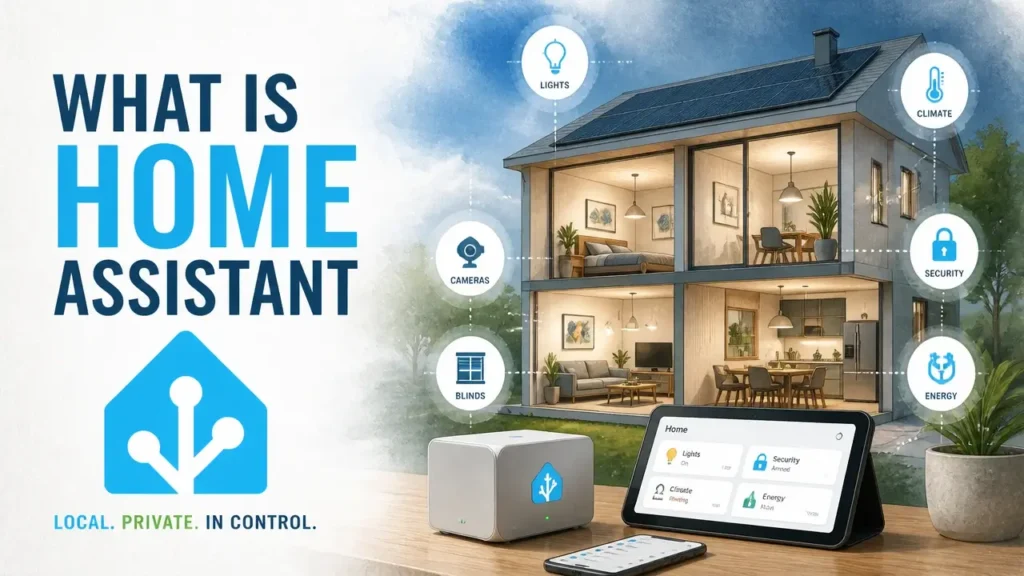
Genuinely local Home Assistant is the free, open-source platform that puts you – not Amazon, Google, or some distant server farm – in charge of your smart home. It runs on hardware you own, processes everything on your local network, and connects to thousands of devices without a monthly fee.
That independence comes with a trade-off: a short learning curve instead of a slick out-of-the-box experience. But once you understand how it actually works, you’ll see why over 21,000 contributors keep building it – and why the “too technical” reputation is mostly myth.
What Exactly Is Home Assistant?
Home Assistant is a free, open-source software platform that acts as the central brain for your smart home, running on hardware you own – not on a company’s server. Think of it less like a product you buy and more like an operating system you install: it lives on a dedicated device in your home, and every command, every automation, every sensor reading stays right there on your local network.
That last part is the whole game. When you ask Alexa to turn off the living room light, that request travels from your phone to Amazon’s cloud, gets processed on a remote server, and then bounces back to your bulb. Home Assistant skips that round trip entirely. The instruction goes from your phone to the box on your shelf – full stop. Your lights work even when your internet is down, and no third party ever sees your habits.
This isn’t a physical gadget you’ll find at Best Buy (though an official plug-and-play appliance called the Home Assistant Green does exist). It’s software, and the project behind it has grown into one of the largest open-source communities in the smart home space. According to the project’s GitHub repository, Home Assistant has attracted over 21,000 contributors – a scale that rivals many commercial software products – and earned the Thomas‑Krenn Award 2019 for outstanding open-source infrastructure.
The commercial “hub” model – Alexa, Google Home, Samsung SmartThings – depends on cloud servers for even basic automations. If the company changes its API, discontinues a service, or simply goes offline, your automations break. Home Assistant has no such single point of failure. The software runs on your terms, on your timeline.
Why Give Up Your Cloud Hub?
Amazon Alexa and Google Home are genuinely convenient – that’s not in dispute. The question is what you quietly give up for that convenience, and whether the trade is actually worth it.
Privacy is the first thing on the table. Cloud-based assistants route your commands and usage patterns through company servers. Voice recordings get stored. Behavioral data gets analyzed. Home Assistant keeps everything inside your four walls. No voice recordings on a remote server. No usage profile being built about when you wake up, when you leave, or when you go to bed.
Reliability is the second. Here’s a scenario you’ve probably lived: your internet goes down during a storm, and suddenly your “smart” home is dumber than a light switch from 1985. A locally controlled Home Assistant setup doesn’t care about your ISP. The automation that turns on your porch light at sunset runs on your hardware, on your network, independently of anything happening outside your router.
Cost is the third – and this one surprises people. The core platform is completely free. No license fee, no tier system, no paywalled features.
That said, there’s an honest answer to the question that comes up constantly: is it free or paid? The software itself costs nothing. There’s an optional cloud service called Nabu Casa – built by the same team – that gives you a polished, one-click way to access your Home Assistant remotely from anywhere. It runs about $6.50 per month, and subscribing directly funds the project’s development. You can skip it entirely by setting up your own VPN tunnel for remote access, though that takes a bit more technical setup.
The comparison below puts the core trade-offs side by side.
| Criteria | Amazon Alexa / Google Home | Home Assistant |
|---|---|---|
| Privacy | Usage data sent to company servers | All data stays on your local network |
| Reliability | Requires active internet connection | Works offline; local processing only |
| Core Cost | Free (device purchase required) | Free software; hardware cost only |
| Remote Access | Built-in via cloud | Free via VPN or ~$6.50/mo via Nabu Casa |
| Internet Dependency | High – most automations require cloud | None – automations run locally |
| Third-Party Data Access | Yes – behavioral and voice data | No |
| Subscription Risk | Service can change or discontinue | Self-hosted; no external dependency |
Researchers studying consumer IoT architectures have articulated this tension precisely. As noted in the Journal of Sensor and Actuator Networks:
“While this implementation [cloud connectivity] satisfies the use cases of some customers, at least initially, many users may wish to control their devices fully locally within their own home network without the need to connect to an external server hosted on the public internet… proprietary solutions often require the user to install a mobile app for each vendor… With a sufficiently open local API, advanced automation via software such as Home Assistant or other custom integrations becomes a straightforward possibility.”
The researchers are describing exactly the gap Home Assistant fills: one platform, local control, no per-brand app juggling.
The “Too Technical” Myth
You don’t need to be a developer to run Home Assistant. That reputation is mostly a ghost from an earlier era of the project, when editing YAML configuration files by hand was the only way to get things done.
The modern Home Assistant UI has a visual, point-and-click editor for both automations and dashboards. You build automations by selecting options from dropdown menus – no code, no terminal, no config files. The interface looks and feels closer to a polished consumer app than a developer tool.
IT consultant and Home Assistant practitioner Derek Seaman has documented this shift in detail, noting that new users can achieve the vast majority of what they want through the visual automation editor alone, without writing a single line of configuration text. His guides – aimed at non-developers – walk through complete setups without touching a YAML file. Thousands of non-technical people run Home Assistant today: busy parents, retirees, apartment renters who just want their thermostat and lights to talk to each other.
Here’s a video that shows the automation editor in action – no coding in sight:
That said, there’s a version of this story the marketing doesn’t tell you. Even the easiest official hardware expects you to understand your home network basics, connect a few adapters, and occasionally poke around in a settings file. It’s not a three-step magic wand. Think of it like setting up a new operating system for the first time: there’s a learning curve, but it’s measured in hours and forum searches – not in computer science degrees. The community is famously patient with beginners, and the documentation is among the best in the open-source world.
What Hardware Will You Actually Need?
Home Assistant needs a dedicated computer that stays on 24/7 – that’s the core requirement. Beyond that, you have three sensible starting paths depending on your budget and how much you want to tinker.
Here’s a look at the hardware options before we go deeper:
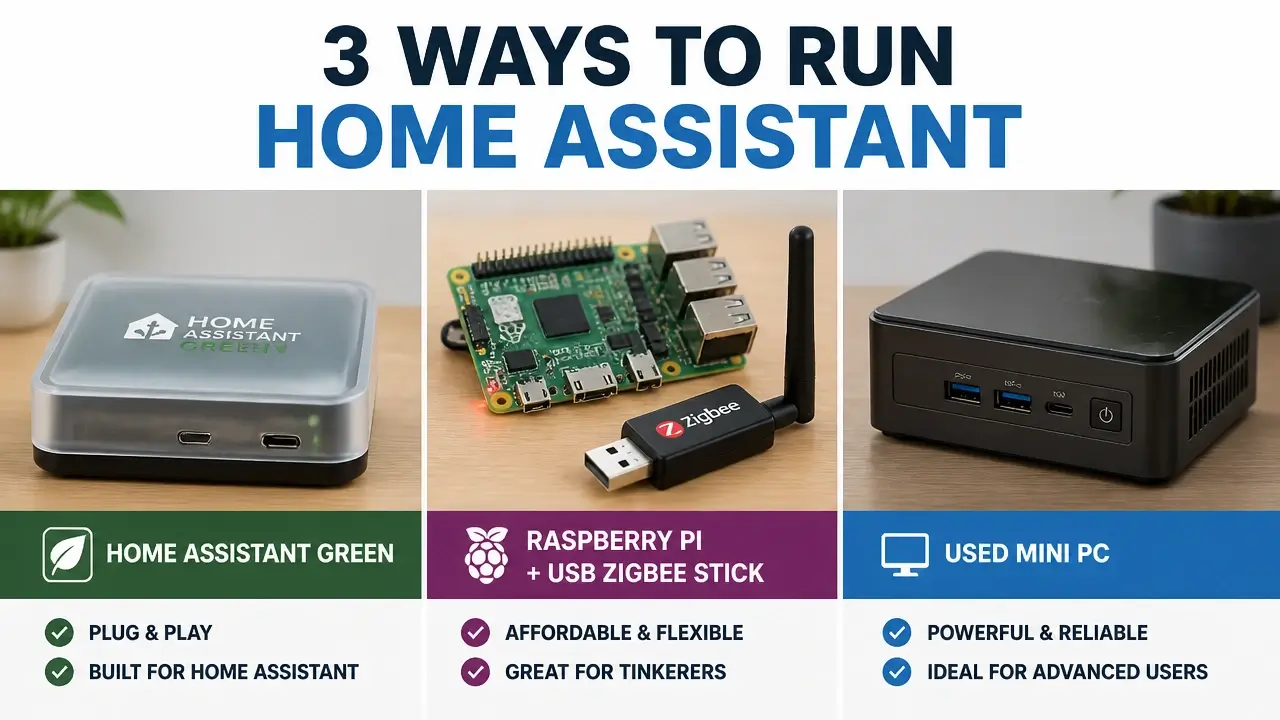
Home Assistant Green ($99) is the official plug-and-play appliance. It comes with the software pre-loaded, plugs into your router, and is ready to configure in minutes. No assembly, no OS installation, no surprises. If you want the smoothest possible start and don’t mind spending a bit more, this is it.
Raspberry Pi 4 or 5 is the classic DIY path. It’s small, runs on very little power, and the community has a decade of guides built around it. You’ll need to buy a power supply, flash the OS to a storage device, and do a bit of initial setup – but the total cost can come in under $80, and you’ll learn the platform from the ground up.
A used mini PC – an old Intel NUC or a refurbished office desktop – gives you more processing power for ambitious setups running multiple add-ons simultaneously. These often run $100–$200 on the used market and are worth considering if you’re planning a large setup from the start.
Regardless of which path you choose, you’ll almost certainly want a USB Zigbee or Z-Wave stick at some point. This small dongle plugs into your Home Assistant server and lets it talk directly to Zigbee sensors and bulbs – bypassing the manufacturer’s proprietary hub entirely. That means your Ikea bulbs, Aqara sensors, and third-party motion detectors can all talk to one system through one stick.
Two things worth knowing before you buy:
The first is the SD card trap. Many beginner guides casually suggest using a microSD card in a Raspberry Pi. Don’t. SD cards aren’t designed for the constant read/write load a live server generates, and they corrupt – sometimes without warning, taking your configuration with them. Use a USB SSD instead, or pick a device like the Green that uses built-in eMMC storage.
The second is what the community calls the “$5 secret weapon” – though the real cost is the USB stick itself, typically $15–$30. Instead of buying Philips Hue’s proprietary bridge ($60+) to control Hue bulbs, you can use a generic USB Zigbee stick with an add-on called Zigbee2MQTT. It supports hundreds of devices from dozens of brands, it’s free, and it lets you mix sensors freely without being locked into any manufacturer’s ecosystem. Just check chipset compatibility on the community list before purchasing – not every cheap stick works equally well.
The official Getting Started guide walks through installation step by step for each hardware path.
How Home Assistant Talks to Your Devices
Home Assistant’s integrations are the connective tissue between the software and every physical device in your home – and understanding that one word makes the whole system click into place.
Here’s the hierarchy in plain terms:
- Integration – a software connector that teaches Home Assistant how to speak a brand’s language. Think of it as the translation layer between Home Assistant and, say, Philips Hue, or your Nest thermostat, or your weather service.
- Device – a physical thing discovered through that integration. Add the HomeKit Device integration, and your smart plug shows up as a device.
- Entity – a single data point or control exposed by that device. The plug’s on/off switch is one entity. If it also reports power consumption, that’s a second entity. A temperature sensor might expose three: current temperature, humidity, and battery level.
That hierarchy matters because automations are built on entities, not devices. And automations follow a simple three-part logic:
- Trigger – what starts the automation (motion detected in the hallway).
- Condition – an optional filter that must also be true (it’s after sunset).
- Action – what happens as a result (turn on the hallway light at 40% brightness).
Everything in that chain runs locally, on your hardware, the moment the trigger fires. No cloud round-trip, no half-second delay, no dependency on a server in another state.
The visual automation editor lets you build these rules entirely from dropdown menus – you pick the trigger type, set the condition, choose the action. The infographic below maps out how these pieces connect:
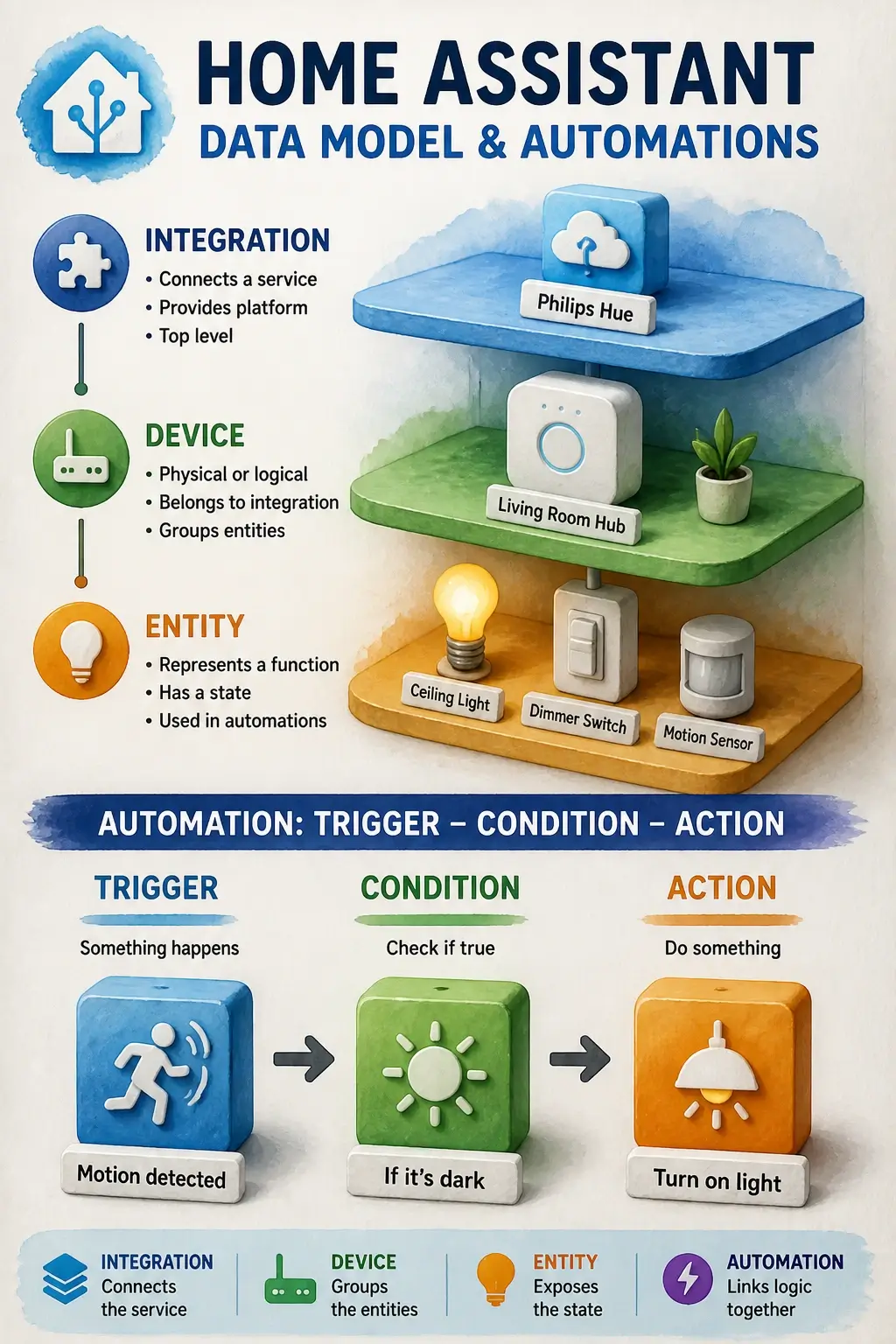
The trigger subsystem is more capable than the “if-this-then-that” description suggests. Triggers can fire on time schedules, sunrise/sunset offsets, device state changes, numeric thresholds (temperature drops below 65°F), or even external webhooks. But for a first weekend, motion-detected light is enough to feel the power of the platform.
Three Ways to Supercharge Your System
Home Assistant’s ecosystem expansion follows a natural progression: start with what’s built in, reach for community tools when you hit a gap, and add remote access when you’re ready to control things from outside the house. These three entry points scale with your ambition – you don’t have to use all of them, and you certainly don’t have to use them all at once.
Native Integrations and the Home Assistant Community Store
HACS – the Home Assistant Community Store – is where the platform’s reach extends well beyond its official boundaries, giving you access to custom integrations, themes, and scripts that the core team hasn’t officially absorbed yet.
Start with the native integrations first, though. Home Assistant ships with over 3,000 built-in, one-click connectors spanning the biggest names in smart home: Philips Hue, Nest, IKEA Trådfri, Sonos, Ecobee, Spotify, Weather Underground, and hundreds more. For most beginners, the devices they already own will be covered without installing anything extra.
When you hit the edge of that list – a niche sensor brand, a regional energy provider, a custom dashboard card you saw on Reddit – that’s when HACS becomes useful. It’s an unofficial, community-run add-on store that installs with a few clicks and opens up thousands of custom integrations, themes, and scripts contributed by the community. It’s deeply loved by enthusiasts. But a beginner genuinely doesn’t need it on day one, and there’s no pressure to install it until native integrations stop covering your needs.
Secure Remote Access with Nabu Casa and Free Alternatives
Nabu Casa is the official answer to “how do I control my home from the coffee shop?” – a paid cloud service at $6.50/month that gives you a secure, encrypted connection to your Home Assistant from any browser or the official mobile app, without any router configuration.
What makes it worth mentioning beyond convenience: subscribing to Nabu Casa directly funds the core development team. The people building the platform you’re using get paid through those subscriptions. If you use Home Assistant and find value in it, this is the cleanest way to support it.
If you’d rather keep costs at zero, VPN tunnel access is the free alternative – set up a WireGuard or Tailscale VPN on your home network, and you can reach your Home Assistant securely from anywhere without paying a monthly fee. It takes more initial setup, but it’s entirely self-contained. Reverse proxy configurations using NGINX with HTTPS are another route for those who want a web-accessible dashboard, though that path requires a bit more networking confidence.
The practical frame: start with native integrations, explore HACS when curiosity strikes, and add Nabu Casa or a VPN when staying connected from outside the house starts to matter.
Security Basics: Protecting Your Home Network
Smart home security is the chapter that nearly every beginner guide quietly skips – and that gap is exactly where real risk hides. Running Home Assistant locally is a major privacy win, but placing any server on your home network comes with responsibilities that are simple to meet once someone actually explains them.
The Real Security Risk and What It Means for You
The security concerns around smart home devices aren’t theoretical, and the numbers back that up. A peer-reviewed study published in the ACM Digital Library found that 40.8% of smart homes contain at least one vulnerable device – and that a single compromised device can serve as an entry point that puts the entire household network at risk. That’s not a warning about Home Assistant specifically; it’s a warning about any unsecured smart home ecosystem, including the commercial ones.
The good news: Home Assistant’s local-first architecture already removes one of the biggest attack surfaces – the cloud. There’s no remote server storing your data that can be breached in a corporate hack. The remaining surface is your home network itself, and that’s manageable with a few deliberate steps. The community has step-by-step walkthroughs for every one of them. You don’t need to become a network engineer – you need about an afternoon and a willingness to follow a checklist.
Network Segmentation and the Safe Path to Remote Access
Network segmentation is the single most effective thing a non-technical Home Assistant user can do for their security posture – and it sounds scarier than it is.
The idea is straightforward: your smart home gadgets should live on a separate network segment from your laptops, phones, and anything that holds sensitive data. On most modern routers, this is done by creating a VLAN (Virtual Local Area Network) and putting all IoT devices on it. If a cheap sensor gets compromised, it can’t reach your laptop because they’re on different network segments. The blast radius of any breach stays contained.
Beyond that, five concrete habits cover the baseline for most setups:
- Set a strong, unique admin password immediately after installation – never keep the defaults.
- Enable two-factor authentication (2FA) in your user profile to block unauthorized logins even if your password leaks.
- Create a dedicated IoT VLAN on your router and put all smart devices on it, isolated from your main computers.
- If you expose Home Assistant to the internet without Nabu Casa, always route it through a reverse proxy like NGINX with HTTPS – never forward a raw port directly.
- Keep Home Assistant and its add-ons updated; security patches ship regularly, and running old versions is the most avoidable risk.
Two-factor authentication and a strong admin password take about five minutes to set up in the Home Assistant interface. The VLAN requires a router that supports it – most modern mesh systems and prosumer routers do. These five steps, taken together, turn a potentially vulnerable setup into something genuinely locked down.
Your First Step: A Simple, Stress‑Free Start
The Getting Started guide at home-assistant.io is your authoritative companion from here – but before you open it, here’s the honest answer to the question this whole article has been building toward: yes, a tech-curious beginner can absolutely succeed with Home Assistant. You don’t need to code. The hardware doesn’t have to be expensive. And the community is your safety net when something doesn’t work the way you expected.
The single best piece of advice for a first weekend: start laughably small. Pick one smart plug or a handful of light bulbs. Install Home Assistant on a Green or an old PC you have sitting around. Build one automation – something like turning a lamp on at sunset. That’s it. Don’t try to migrate your entire smart home in 48 hours. The platform rewards patience, and the confidence you build from that first working automation is what carries you into the more interesting territory.
Stay completely local until you feel settled. You don’t need Nabu Casa, HACS, or a VPN on day one. The core platform, a single integration, and one automation are enough to understand why people get hooked.
When you’re ready to go deeper, two spoke articles are coming that pick up exactly where this one leaves off: one walks through device-by-device compatibility so you can check whether your existing gear will work before you buy anything new, and the other covers step-by-step setup for each recommended hardware path – Green, Raspberry Pi, and mini PC – from unboxing to first automation.
The thing that keeps people coming back to Home Assistant isn’t the feature list. It’s the feeling of owning your smart home – no subscriptions extracting rent, no company reading your habits, no automation that stops working because a server went down. That sense of control is within reach, and now you have the mental model to go get it.
Key Takeaways on Home Assistant
- Home Assistant is free, open-source software that runs on your own hardware, keeping all smart home data on your local network.
- Unlike Alexa or Google Home, Home Assistant works without an internet connection because no cloud server is involved in processing automations.
- The core platform costs nothing; optional remote access via Nabu Casa runs about $6.50 per month, and free VPN alternatives exist.
- You don’t need coding skills – the visual automation editor handles the vast majority of setups through point-and-click menus.
- A USB SSD or built-in eMMC storage is essential for reliability; SD cards corrupt under the constant read/write load of a live server.
- Five security steps – strong password, 2FA, IoT VLAN, HTTPS reverse proxy, and regular updates – cover the baseline for a safe setup.
Frequently Asked Questions About Home Assistant
Is Home Assistant completely free, or will I hit a paywall?
The core platform is entirely free with no feature tiers or paywalled automations. The only paid option is Nabu Casa at about $6.50 per month, which handles remote access – and you can skip it entirely by using a free VPN instead.
What does Home Assistant actually do that my existing smart home doesn’t?
It acts as a single, local hub that connects devices from completely different brands – bulbs, sensors, thermostats, cameras – under one roof, letting them trigger each other without any of them needing to reach the internet to do it.
Can Home Assistant control devices that don’t have an official integration?
Yes, in two ways: HACS (the community store) adds thousands of unofficial integrations for niche brands, and a USB Zigbee or Z-Wave stick lets you connect wireless devices directly without any manufacturer hub at all.
What happens to my automations if the Home Assistant server loses power?
They pause until the server comes back online – automations run on the server, so if the hardware goes down, so does processing. That’s why people use reliable, always-on hardware and a good UPS for the server.
Is Home Assistant a good fit if I rent and can’t install anything permanently?
Absolutely. Home Assistant works entirely with plug-in devices – smart plugs, wireless bulbs, battery-powered sensors – so no wiring or permanent installation is needed. You can take the whole setup with you when you move.
How long does it realistically take to get a basic setup running?
Most people have their first device integrated and a working automation within two to three hours on a first attempt, assuming they follow the official Getting Started guide and start with a supported device.
Does using Home Assistant void my smart device warranties?
No. Home Assistant communicates with devices over their existing network protocols – it doesn’t modify device firmware or hardware. Your warranties stay intact.
What if I want to use voice control with Home Assistant?
Home Assistant integrates with both Alexa and Google Assistant if you want voice control, and it also supports fully local voice processing through its own voice assistant pipeline – so you can have voice commands without sending audio to any cloud server.
References
- Home Assistant Core Contributors – github.com
- Journal of Sensor and Actuator Networks – mdpi.com
- Derek Seaman’s Home Automation Guides – derekseaman.com
- ACM Digital Library: Addressing IoT Vulnerabilities in Smart Homes – dl.acm.org
- Home Assistant Getting Started Guide – home-assistant.io