
Setting up Home Assistant correctly means making three decisions before you ever plug anything in – which hardware to run it on, which storage medium to trust it with, and how to anchor it permanently to your network. Get those right, and everything else follows a logical sequence.
This guide doesn’t hide the technical moments behind marketing language. You will flash an OS image, touch a router setting, and rename a device entity. None of it is hard once you know exactly what to expect – and that’s precisely what we’re going to build here.
Before You Begin: What You Actually Need
Setup prerequisites for Home Assistant are more specific than most beginner guides admit – and knowing exactly what’s on the list before you buy anything will save you a frustrating return trip to the store. You need a host device, a reliable storage medium, an Ethernet cable, and a computer with a modern browser. That’s the complete shopping list, but the details inside each category matter.
Let’s start with the host device, because this is where the decision tree branches.
The three hardware tiers worth considering:
- Home Assistant Green – A purpose-built, plug-and-play device with eMMC storage already onboard. No flashing required. Around $99 and the cleanest possible starting point.
- Raspberry Pi 4 or 5 – The community favorite and the lowest-cost entry point, but it comes with a reliability asterisk we’ll address in the next section. Absolute minimum: 2 GB RAM, though 4 GB is the practical floor for a responsive system.
- x86-64 mini-PC – A Beelink, an old laptop, or any small form-factor PC. These machines are more powerful, easier to expand, and more forgiving than a Pi. They also require a USB flash drive for the initial install.
Every path requires an Ethernet cable. No Wi-Fi for the server – not now, not ever. Wi-Fi introduces latency and dropout risk that will erode your trust in the whole system.
The storage and accessories checklist:
- A microSD card (32 GB minimum) if you’re using a Pi – but read the troubleshooting procedures before you rely on it alone
- A USB SSD, strongly recommended for Pi users as the primary boot drive
- A USB flash drive (16 GB+) for x86-64 installs
- A computer with a browser to run balenaEtcher or Raspberry Pi Imager for flashing
One more requirement that almost no guide mentions upfront: you must be able to log into your router’s admin page. This is non-negotiable. You’ll need it to assign a permanent IP address to your Home Assistant device later, and without it, your setup will work fine until the next power outage – then silently become unreachable.
The realistic skill expectation here is honest: this is not a “zero technical knowledge” project. You will write an OS image to a drive, possibly change a BIOS boot order on a mini-PC, and edit one router setting. Every one of those screens will be walked through in this guide. But go in knowing they exist.
Cyber-Physical Smart Homes Research Group, a peer-reviewed research team studying smart-home architecture and hardware deployment, documented their own production setup this way:
“HomeAssistant (HA) is based on the HomeAssistant Operating System (HAOS) installed on an 8 GB RAM variant of a RPi4 device with a 256 GB solid-state drive (SSD) storage. One other option was to use a docker container on GW to install HA; this could have added extra load on the GW hardware, which may have resulted in low performance.”
Notice what they chose: a Pi with an SSD, not a bare SD card. And they explicitly flagged the container path as a performance risk on shared hardware. That’s a practitioner signal worth taking seriously before you commit to a path.
Pick Your Path: Green, Pi, or Container?
Installation methods for Home Assistant fall into three categories, and each one makes a different promise – the gap between those promises and real-world experience is exactly what you need to understand before choosing. Home Assistant Green delivers the cleanest out-of-box experience. A Raspberry Pi running Home Assistant OS is the most documented path. Home Assistant Container via Docker is the most flexible option, but it trades away features that beginners will miss immediately.
Here’s what each path actually gives you:
Home Assistant Green is a dedicated device with eMMC storage, a supported processor, and zero flashing steps. You plug it in, connect Ethernet, and power it on. The official Home Assistant documentation now lists this as the “Easiest” installation path – a deliberate ranking that signals a quiet shift away from the Pi as the universal default. If your budget allows it, this is the path with the fewest ways to fail.
Home Assistant OS on Raspberry Pi is the lowest-cost entry point and has the largest library of community tutorials. The trade-off is storage reliability. SD cards – the default storage medium for most Pi setups – are the leading documented cause of silent corruption and total system death on the Pi platform. Derek Seaman, a well-known practitioner in the Home Assistant community, explicitly advises against setups that rely solely on an SD card for this exact reason. The fix is straightforward: boot from a USB SSD from day one. A Pi with an SSD is a legitimate, reliable platform. A Pi running on a bare SD card is a gamble with your smart home configuration.
Home Assistant Container running on Docker is the right choice only if you already have a home server and you’re comfortable without the Supervisor layer. Here’s the trade-off that matters: the Container path removes the Add-on store entirely. That means no one-click installation of tools like the Google Drive Backup add-on, no managed updates, and no automatic backup scheduling. Every extra service requires manual configuration. For a tech-ready beginner, this will consume hours that could be spent actually building automations.
The direct recommendation: If you want the least frustration and the most reliable long-term setup, choose Home Assistant Green or a Raspberry Pi booting from a USB SSD. Both run Home Assistant OS, both get the full Add-on store, and both will behave predictably when you follow the steps in this guide.
Flash the OS Without Failing
The OS flashing pathway is the first hands-on action in setting up Home Assistant, and it’s where the storage decision you just made becomes permanent. The procedure itself is simple – but choosing the right drive to write to, and confirming that the image lands on the correct device, is where most mistakes happen.
Universal Flashing Steps for Home Assistant OS
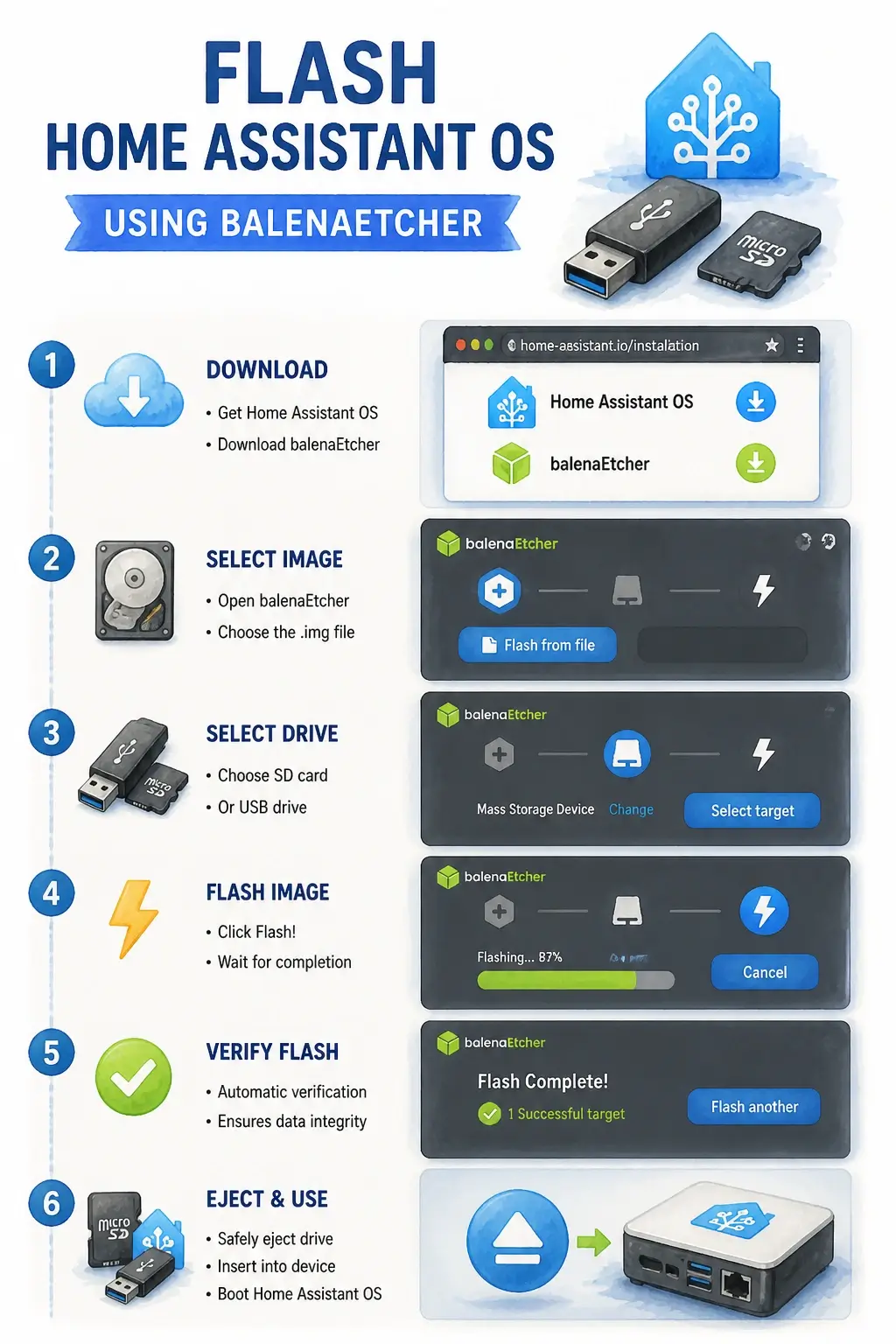
Image flashing with balenaEtcher or Raspberry Pi Imager follows the same three-step pattern regardless of your target hardware: download the correct image, select your target drive, and write. The critical discipline is in the middle step.
Step 1 – Download the correct image. Go to the official Home Assistant installation page at https://www.home-assistant.io/installation/. Select your hardware (Raspberry Pi, x86-64, or Generic x86-64). Download the `.img.xz` file for your platform. Do not extract the archive – balenaEtcher and Raspberry Pi Imager handle compressed images natively.
Step 2 – Open your flashing tool. Both balenaEtcher and Raspberry Pi Imager are free and work on Windows, macOS, and Linux. Raspberry Pi Imager has a built-in image browser if you prefer not to download manually. Either tool works for this procedure.
Step 3 – Select the target drive carefully. This is the moment that matters. Plug in your SD card or USB SSD. In balenaEtcher, click “Select target” and confirm the drive name and size match what you plugged in – not your computer’s internal disk. If you see two drives of similar size, physically unplug the one you’re not targeting. One wrong click here will overwrite a drive you didn’t intend to touch.
Step 4 – Flash and verify. Click “Flash.” Both tools run a verification pass automatically after writing. Let it complete. Do not pull the drive during verification.
Here’s a visual overview of the full flashing workflow in balenaEtcher before we move to platform-specific boot steps:
Platform Boot Configuration for Pi, x86-64, and Green
Boot configuration diverges by platform after the image is written, and getting this step wrong means the device simply won’t start. Each platform has exactly one thing you need to handle before the first power-on.
Raspberry Pi – USB SSD boot: If you’re booting from a USB SSD (which you should be), the Pi needs USB boot enabled before it will recognize the SSD as a valid boot target. On a Pi 4 or 5, this is a one-time change in the bootloader configuration. Use Raspberry Pi Imager to write the “Bootloader – USB Boot” image to a temporary SD card, boot the Pi from that card once, and wait for the green LED to flash steadily – that confirms the bootloader has been updated. Shut down, remove the SD card, plug in your SSD, and boot normally. You’ll never need to do this again.
x86-64 mini-PC – two-step install: Writing the image to a USB drive is not the final destination. When you boot the mini-PC from that USB drive, the HAOS installer automatically writes itself to the internal SSD – the USB is just the delivery mechanism. You’ll need to enter BIOS/UEFI (typically by pressing Delete, F2, or F12 during startup – check your device’s manual) and set the USB drive as the first boot device. After the installer runs and the system reboots, HAOS will be on the internal SSD and the USB drive can be removed. This two-step process confuses a lot of first-timers who expect the USB to be the permanent home.
Home Assistant Green – nothing to do: The Green ships ready to run. Plug in Ethernet, connect power, and skip directly to Onboarding Home Assistant.
If you’re setting up on a mini-PC and want to see the full BIOS-to-dashboard flow in real time, this walkthrough covers the process clearly:
First Boot and Locking Down Your Network
Network configuration is the step that separates a Home Assistant install that works once from one that works every time. After powering on your device with Ethernet connected, give it up to five minutes – the first boot takes longer than subsequent ones as it expands the filesystem and pulls initial setup files.
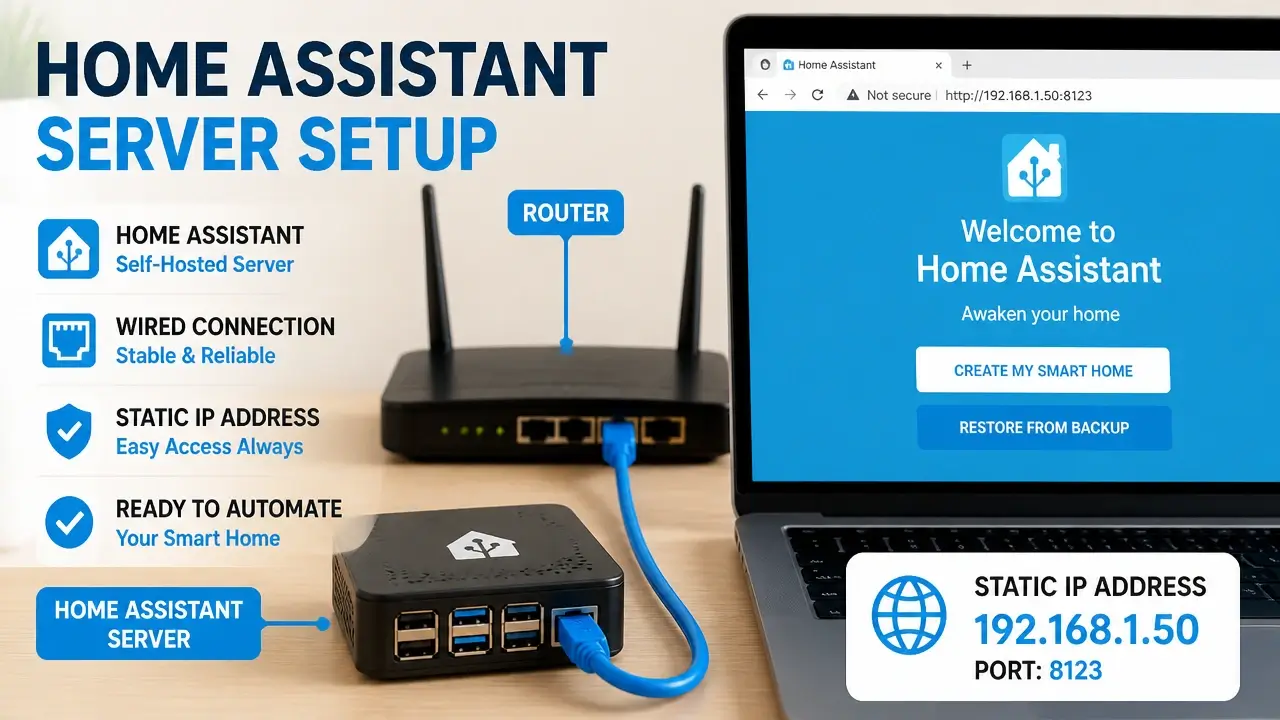
Once the device is running, open a browser on any computer on the same network and go to:
“` http://homeassistant.local:8123 “`
If the welcome screen appears, you’re in. If it doesn’t load after five minutes, log into your router’s admin page and look for a connected device named “homeassistant” or similar. The IP address listed there is your direct access point – bookmark it.
Now do the single most important network task before you touch anything else.
Here’s what’s at stake: your router assigns IP addresses dynamically by default. That means after a power outage or router reboot, your Home Assistant device might come back with a different IP address. When that happens, your mobile app loses connection, your voice assistant integrations break, and any automation that calls an external service stops working. The fix takes two minutes and prevents all of it.
How to set a DHCP reservation: Log into your router admin page (typically `192.168.1.1` or `192.168.0.1` – check the label on your router). Find the connected devices list, locate your Home Assistant device, and assign it a static IP or DHCP reservation. The exact menu label varies by router brand – look for “DHCP Reservation,” “Address Reservation,” or “Static Lease.” Write down the IP address you assign.
Once that’s done, `homeassistant.local` via mDNS is a convenient alias, but bookmarking the static IP directly is the more reliable access method. mDNS can fail on certain network configurations; a direct IP never will.
One last network note: keep the Home Assistant device on your main trusted home network. Guest networks isolate devices from each other by design – putting Home Assistant on a guest network will prevent it from discovering or communicating with your smart devices.
Onboarding: The Password No One Can Save You From
Onboarding Home Assistant begins the moment the welcome screen appears, and it walks you through five screens that are mostly straightforward – except for one that deserves your full attention before you click past it.
Screen 1 – Create your owner account. Enter a name, a username, and a password. This account is not just an admin login. It is the owner credential, and the official Home Assistant documentation states this plainly:
“There is no way to recover the owner credentials.”
Read that again. If you lose this password, there is no “forgot password” link, no support ticket, and no recovery tool. The only path forward is a full reinstall – and if you don’t have a backup, you lose your entire configuration. Every automation, every integration, every dashboard layout. Gone.
What to do before you click “Create Account”: Open your password manager right now – 1Password, Bitwarden, or whatever you use – and save the username and password there before you submit the form. If you don’t use a password manager, write it on paper and store it with your important documents (passport folder, filing cabinet, wherever you keep things you can’t afford to lose). An encrypted offline copy in a secure note app is also acceptable. The medium matters less than the act of storing it somewhere other than your memory.
Screens 2 through 5 – the rest of onboarding:
- Home location: Home Assistant asks for your home’s location to power presence detection and sun-based automations. The default radius is 100 meters – this is what determines whether the system considers you “home” or “away.” You can tighten or widen this later, but 100 meters is a reasonable starting point for most houses.
- Analytics toggle: Home Assistant asks if you’d like to share anonymized usage data. This is optional. Neither choice affects functionality.
- Device discovery: The system will show you any smart devices it auto-detected on your network. You can add them here or skip and do it manually later.
Click “Next” through the remaining screens, then “Finish.” The main dashboard appears. You’re in.
Breathing Life Into the Dashboard: Your First Integration
Device integration is where setting up Home Assistant stops feeling like a technical exercise and starts feeling like a smart home. The dashboard you’re looking at is intentionally blank – Home Assistant doesn’t assume anything about your devices until you tell it what you have.
Navigate to Settings → Devices & Services → Add Integration. Use the search bar to find your device type. We’ll use two concrete examples: Philips Hue (cloud-assisted, extremely common) and a Zigbee USB coordinator like the Sonoff Zigbee 3.0 USB Dongle Plus (fully local, no cloud dependency).
For Philips Hue: Search “Philips Hue,” select it, and Home Assistant will scan your network for a Hue Bridge. When it finds one, it will ask you to press the physical button on top of the bridge to authenticate. Press it, click submit, and within seconds your Hue lights appear as entities.
For a Zigbee USB dongle: Search “Zigbee Home Automation” (ZHA), select it, and Home Assistant will ask you to choose your coordinator device from a list of detected USB ports. Select your dongle, let it initialize, then put your Zigbee devices into pairing mode one at a time.
Understanding the device-to-entity relationship: When a device is added, Home Assistant creates multiple entities from it. A single smart power strip might generate six entities: one for each outlet, plus power monitoring sensors for each. A Hue bulb generates a light entity, a brightness entity, and a color temperature entity. This is not clutter – it’s granularity. But it will look overwhelming the first time you see it.
Add your first dashboard card: Go to your dashboard, click the pencil icon to enter edit mode, and click “Add Card.” Choose an Entities card or a Light card, select the entities you just added, and hit Save. The card appears immediately. The dashboard auto-saves every change.
Now, before you add a second integration or build a single automation – stop and rename your entities.
This is the step that most beginners skip, and it’s the one that creates hours of rework later. Home Assistant generates entity IDs automatically from device names and MAC addresses. You’ll see things like `switch.shellyplug_s_4a2c_relay_0` or `light.hue_color_lamp_3`. These IDs are embedded in every automation and script you write. If you rename an entity after you’ve built automations, every reference to the old ID breaks silently – the automation just stops working with no error message.
How to rename an entity: Go to Settings → Devices & Services, find your device, click on it, and click on the entity you want to rename. Change the entity ID to something human-readable: `switch.living_room_lamp`, `light.bedroom_ceiling`, `sensor.front_door_motion`. Do this for every entity before you build anything. Spend ten minutes here to save ten hours later.
Make It Work for You: Your First Automation
Automation setups are where Home Assistant earns its reputation – and your first one should be immediately useful, not just a proof of concept. We’re going to build a motion-triggered light that turns on after sunset, using the visual editor, with no code required.
Navigate to Settings → Automations & Scenes → Create Automation → Create New Automation.
Step 1 – Set the trigger. Click “Add Trigger,” choose “Entity,” then “State.” Select your motion sensor entity (e.g., `binary_sensor.living_room_motion`). Set “To” as “Detected.” This fires the automation every time the sensor sees movement.
Step 2 – Add a condition. Click “Add Condition,” choose “Sun,” then “Sun state.” Set it to “After sunset.” This ensures the light only turns on when it’s actually dark – not every time someone walks through the room at noon.
Alternatively, if you have a light level sensor, you can use a numeric state condition: trigger only when lux reading is below a threshold. Either works.
Step 3 – Define the action. Click “Add Action,” choose “Call Service,” then `light.turn_on`. Select your light group entity (e.g., `light.living_room_group`). You can set a brightness and color temperature here if you want – or leave it at defaults.
Step 4 – Name it, save it, test it. Give the automation a clear name: “Living Room Motion Light After Sunset.” Click Save. On the Automations page, find it in the list and use the three-dot menu to run it manually – confirm the light responds. Then toggle the automation off and on to verify the switch works.
The household harmony rule: This automation must never disable physical wall switches or require a phone to turn on a basic light. If someone flips the wall switch, the light should behave like a normal light. If the internet goes down, the automation still runs – Home Assistant processes all automations locally, so cloud outages are irrelevant. But the wall switch behavior is a design principle: your smart home should be invisible to anyone who doesn’t want to interact with it.
The physical switch still works. The automation is an addition, not a replacement. That distinction is what makes the difference between a smart home your whole family accepts and one that causes daily friction.
When Things Go Wrong: Failures, Fixes, and Future-Proofing
A working Home Assistant install is not a finished one – the failures that drive new users away don’t happen on day one. They happen six weeks later, quietly, and they look like the system just stopped working for no reason. Understanding what actually kills these setups, and building the habits that prevent it, is the difference between a resilient smart home and an abandoned project.
The Three Most Common Silent Failures
Failure fixes for Home Assistant cluster around three predictable patterns, and none of them are hardware defects – they’re all configuration gaps that are entirely preventable once you know where to look.
Failure 1 – SD card corruption on Raspberry Pi. This is the most documented cause of Home Assistant death in the community. SD cards were not designed for the constant read/write cycle that a 24/7 server demands. They wear out silently, and when they go, they often corrupt the filesystem rather than fail cleanly. You don’t get a warning. The system just stops booting one morning.
The fix: Move to USB SSD boot. If you’re already running on an SD card, back up your configuration today (we’ll cover this in the backup procedures), reflash HAOS to a USB SSD, and restore the backup. The SD card path is cheaper upfront and costs far more in lost configuration later.
Failure 2 – Home Assistant becomes unreachable after a router reboot. If you skipped the DHCP reservation step in the network section, this will happen to you. The router assigns a new IP, your bookmarks and mobile app point to the old one, and nothing connects.
The fix: Log into your router, find the Home Assistant device in the connected devices list, and assign a permanent IP reservation right now. If you can’t reach the dashboard to do this, check the router’s device list for the new IP, access the dashboard from there, then immediately lock in the reservation.
Failure 3 – Database corruption in Proxmox virtual machines. If you’re running Home Assistant OS as a VM inside Proxmox (a popular homelab hypervisor), the default virtual disk cache setting can cause database corruption under certain write conditions. This one is subtle – the system appears to run fine until the database silently corrupts, causing the recorder integration to fail or the system to become unresponsive.
The fix: In Proxmox, navigate to your Home Assistant VM’s hardware settings, find the virtual disk, and change the cache type from the default to “Write Through.” This setting ensures writes are confirmed before the system acknowledges them, preventing the corruption pattern. This fix is not documented in official Home Assistant installation guides – it comes entirely from practitioner experience in the Proxmox community.
Backup Procedures and the Habits That Keep You Running
Backup procedures are the final structural layer of a resilient Home Assistant setup, and the most important one to automate immediately – because the only scenario where you’ll desperately wish you had them is the one where it’s already too late to create one.
Setting up automatic encrypted backups with Google Drive:
- In Home Assistant, go to Settings → Add-ons → Add-on Store and search for “Home Assistant Google Drive Backup.”
- Install it, open the add-on, and click “Authenticate with Google Drive.” Follow the OAuth flow to connect your Google account.
- In the add-on settings, configure a nightly backup schedule. Set the number of backups to retain (5–10 is a reasonable range – older ones are deleted automatically).
- Enable encryption with a passphrase. Store that passphrase in the same password manager where you saved your owner credentials.
Test the restore process before you need it. Download a backup from Google Drive, go to Settings → System → Backups, click “Upload Backup,” and verify that Home Assistant recognizes the file and shows the restore option. You don’t need to complete the restore – just confirm the file is valid and the system can read it.
The lost-owner-password scenario: If you lose your owner credentials, there is no recovery path inside Home Assistant. A backup restore is your only option – it will bring back your configuration along with the credentials stored within it. This is exactly why the password storage step during onboarding wasn’t optional advice. It was insurance for this moment.
The Digital Health Systems Integration Group, a team of systems engineers who study high-stakes backup and disaster recovery pipelines, documented the operational standard that applies directly here:
“Routine backups of the OIS are essential to ensure data integrity and continuity in the event of a system failure. A typical procedure involves automatic daily backups… To safeguard against data loss… weekly and monthly updates are also performed… In the event of an OIS failure, the backup server can restore the data… Regularly test the backup system to confirm that data can be restored quickly and accurately.”
The principle maps cleanly: daily automated backups, periodic verification, and a tested restore path. Home Assistant’s Google Drive Backup add-on delivers all three with minimal configuration.
The winning habits that prevent most problems:
- Check the System Health panel (Settings → System → Repairs) monthly. It flags known issues, pending updates, and configuration warnings before they become failures.
- Update HAOS monthly – not every release, but don’t let updates pile up past two or three versions. Larger version gaps introduce more breaking changes.
- When buying new smart devices, prioritize local control – Zigbee, Z-Wave, and Matter devices that don’t require a cloud account to function. If the manufacturer’s server goes offline, a locally-controlled device keeps working. A cloud-dependent one becomes a paperweight.
Key Takeaways on Setting Up Home Assistant
- Setting up Home Assistant on a bare SD card is the single most predictable cause of system failure; boot from a USB SSD from day one.
- Home Assistant Green is now the officially ranked “Easiest” path, signaling a real shift away from the Raspberry Pi as the universal default.
- The owner credential has no recovery option – store it in a password manager before you click “Create Account.”
- Assign a DHCP reservation in your router immediately after first boot, or a power outage will make your entire setup unreachable.
- Rename every entity before building any automations; renaming later silently breaks all references without error messages.
- Automated encrypted backups to Google Drive, combined with a tested restore, are the only protection against a complete configuration loss.
Frequently Asked Questions About Setting Up Home Assistant
What’s the actual difference between Home Assistant OS and Home Assistant Container?
Home Assistant OS is a full operating system that includes the Supervisor layer, the Add-on store, and managed backups – it’s the path this guide covers. Home Assistant Container runs only the core application inside Docker, with no Add-on store and no managed backup tooling, which means significantly more manual configuration for every extra service.
Can I run Home Assistant on Wi-Fi instead of Ethernet?
You technically can, but you shouldn’t – Wi-Fi introduces connection drops and latency that will make your automations feel unreliable and your integrations disconnect randomly. Ethernet is a hard requirement for a stable server, not a preference.
How long does the first boot actually take?
Expect three to five minutes on a Raspberry Pi or mini-PC, and up to ten minutes on the very first boot while Home Assistant expands the filesystem and downloads initial components. If nothing appears at `http://homeassistant.local:8123` after ten minutes, check your router’s device list for the assigned IP and try connecting directly.
What happens if I skip setting a static IP or DHCP reservation?
Your setup will work fine until your router reboots or reassigns addresses – then Home Assistant gets a new IP, and every bookmark, mobile app, and voice assistant integration that pointed to the old IP stops working. It’s a five-minute fix in your router that prevents hours of confusion later.
Is Home Assistant safe to expose to the internet?
Not without additional security layers. Out of the box, Home Assistant should only be accessible on your local network. If you want remote access, the recommended path is the official Home Assistant Cloud (Nabu Casa) subscription, which handles secure tunneling without opening firewall ports. Exposing the dashboard directly via port forwarding without proper authentication is a documented security risk.
Can I migrate from a Raspberry Pi to a mini-PC without rebuilding everything?
Yes – this is exactly what the backup and restore system is designed for. Create a full backup on your Pi, install HAOS on the mini-PC, go through the initial onboarding, then restore the backup. Your configuration, automations, and integrations come back intact.
What does “local control” mean and why does it matter for Home Assistant?
Local control means the device communicates directly with Home Assistant over your home network, without routing commands through a manufacturer’s cloud server. Zigbee, Z-Wave, and Matter devices are locally controlled. If a manufacturer shuts down their cloud service – which happens regularly – locally controlled devices keep working and cloud-dependent ones stop responding entirely.
Do physical wall switches still work after I add automations?
Yes, and they must. A well-designed Home Assistant setup adds automation on top of normal switch behavior without replacing it. If your automation turns a light on, the wall switch should still be able to turn it off. If this isn’t working, it’s a configuration issue with the specific integration, not a Home Assistant limitation.
References
- Smart Home Architecture and Hardware Deployment in Cyber-Physical Systems – frontiersin.org
- Backup Procedures and Disaster Recovery in Digital Health Systems – mdpi.com